Minecraft Controller Support on PC for Java and Bedrock
Minecraft controller support on PC varies by edition: compare Java mods and Bedrock setup, map controls through Steam, and fix common input problems.

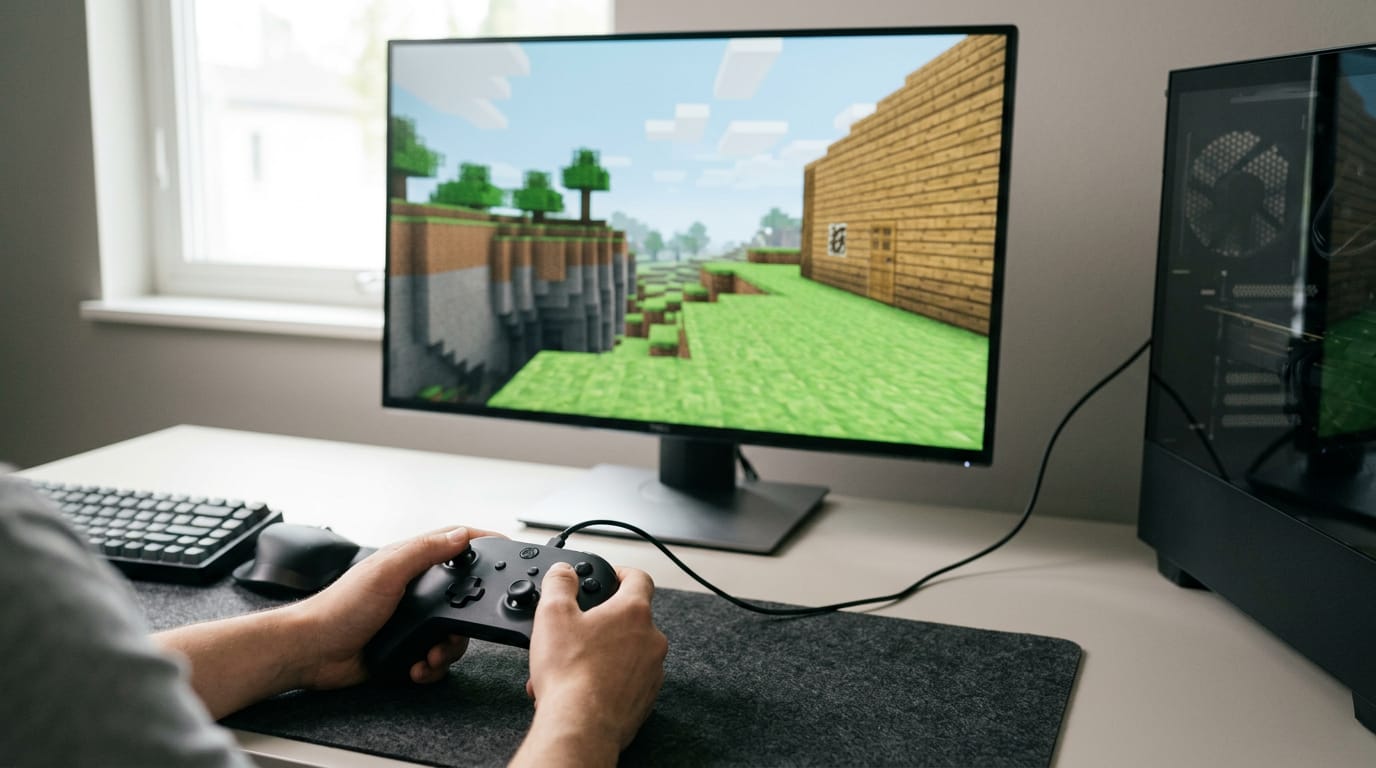
Minecraft controller support on PC depends on the game edition: Bedrock recognizes controllers natively, while Java needs a third-party tool or mod. Connect by USB or Bluetooth, use one input-mapping program at a time, and check mod compatibility with your Minecraft version; wired play can reduce delay and avoids charging. A controller is especially comfortable for couch play and smooth movement, while keyboard and mouse remain more precise for building and inventory tasks.
Plenty of us grew up with a controller, then swapped to a keyboard at the desk without a second thought. Playing Minecraft on PC with a gamepad feels a little like that: same game, different way to hold it.
The short answer is yes, you can use one on PC, but how smoothly it works depends on whether you run Java or Bedrock and how you set it up.
This post covers which editions support controllers, how to set one up for each, and which picks suit a real budget in Canadian dollars. We’ll also cover when wired beats wireless.
Minecraft Controller Support for Java and Bedrock
Controller support depends on which edition you’re playing. Here’s where each one stands, and we’ll walk through the setup for both.
Bedrock works with controllers right away
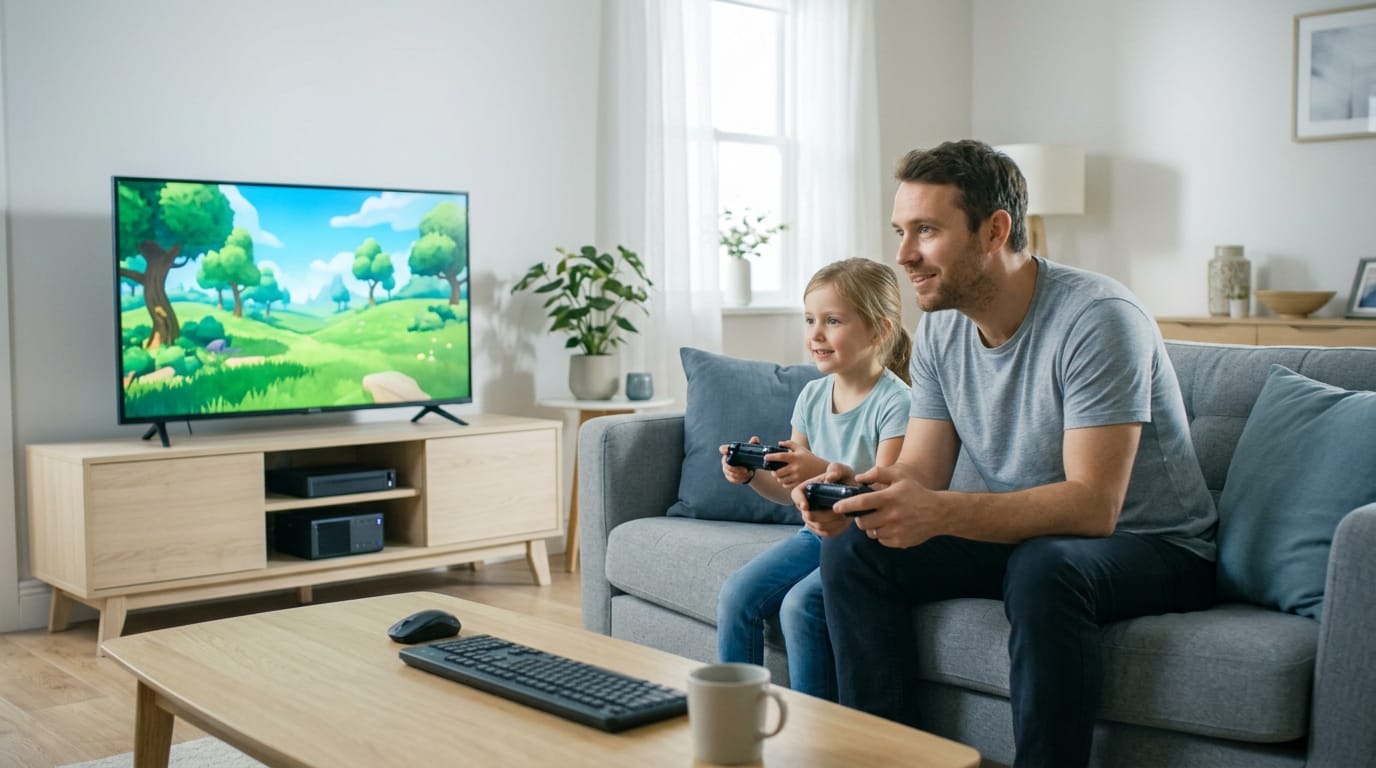
Bedrock Edition supports controllers natively, so there’s no extra software to add. Think of a parent who wants to play with their kid on the couch, using a controller already sitting in the drawer.
They connect it with a wired Universal Serial Bus (USB) cable or pair it over Bluetooth, then launch the game.
Bedrock detects the controller automatically, and the on-screen button prompts (called adaptive icons) switch to match the controller in hand. That’s the whole setup.
Java needs extra tools for controllers
Java Edition has no native controller support, so it can’t use a controller on its own. You’ll need a third-party tool or mod to bridge the gap: install it first, then connect your controller and follow its setup.
Community mods aim to give Java a Bedrock-like experience, but they’re workarounds, not official support. That makes controller setup a project instead of a plug-in. Java takes more work.
Here’s a quick way to choose:
| Your priority | Edition | Controller setup |
|---|---|---|
| Controller play with no extra software | Bedrock | Plug in or pair, then play |
| Keyboard and mouse, or Java mods you’re happy to set up | Java | Install a third-party tool or mod first |
Who Benefits from Playing with a Controller
A controller won’t suit everyone, but for some players it changes how Minecraft feels. Here’s who gets the most out of one.
Comfort, immersion and precise movement
Sitting with a keyboard and mouse for hours gets uncomfortable, and a controller lets you lean back and hold it in both hands. That comfort matters most in long sessions.
Analog sticks also move more smoothly than the on-or-off feel of keyboard movement, so strolling a ridge feels natural. Many controllers add haptics, the rumble and vibration that adds a physical layer to the action.
The keyboard still wins for block placement, where it’s less about speed and more about precision. Quick hotbar switching and exact cursor aiming come easier with a mouse, so if you mostly stack blocks, stick with it.
Players who use controllers most
Here’s who reaches for one most:
- Couch gamers. A PC hooked up to the living room TV is far more comfortable with a controller than with a keyboard on the coffee table.
- Console-to-PC players. A console’s layout already feels familiar, so the switch is quick.
- Accessibility needs. Players with limited hand mobility or grip strength often find a controller easier to hold and press. Check the button settings for what suits your hands.
- Parents and kids. Think of a parent building a shared world with their kid on the couch. Both already know a console controller, so nobody has to learn the W, A, S, and D keys before the fun starts.
- Controller preference. If you simply like how a controller feels, that’s reason enough.
Best Controller Mods for Minecraft Java
Controller support on Java Edition comes through mods, and three names come up most: Controlify, Controllable, and MidnightControls. Here’s how they differ and where the version limits bite.
Controlify for broad controller compatibility
Controlify is the broad-compatibility pick. It supports both Fabric and NeoForge, which are mod loaders (the tools that load mods into the game).
It’s built on SDL3 (Simple DirectMedia Layer 3), an input library, so it works with a wide range of controllers. Its default sensitivity matches Bedrock Edition, so if you’ve played there, the camera feels familiar from the first launch.
Think of a player who wants their Xbox controller on the couch for both Java and Bedrock. Controlify lets them skip the tuning step and jump straight into the game. Its wiki documentation covers setup, so answers live in one place.
An optional paid splitscreen mod adds couch co-op, but you don’t need it for basic controller support.
Controllable, built for Xbox and PlayStation
Controllable, made by MrCrayfish, is built for Xbox and PlayStation controllers. It’s powered by SDL2 (Simple DirectMedia Layer 2), an input library. If you get stuck, you’ll find documentation and Discord support.
It supports Minecraft 1.20.1 and newer, so confirm your version before you install it.
MidnightControls as a native-style alternative
If Controlify or Controllable feels like more than you need, MidnightControls is the alternative to name. It offers native-style Java controller support, so the goal is controller play that feels like part of the game rather than an add-on.
Its settings are configured in-game, so you adjust controller options without leaving Minecraft.
Version limits and mod conflicts
Controlify requires Minecraft 1.19.4 or later. According to The Spike’s Controlify guide, it works on 1.19.4 and newer and can be downloaded safely from Modrinth or CurseForge.
Recent versions are best supported, and older mod builds can be buggy, so keep your mods current. The question isn’t whether a controller mod works, but which version you’re running. Pick your version first. Then pick the mod.
Mod compatibility with other mods is the last check: test it after each new addition.
What Controller Mods Add to Gameplay
Most of a controller mod’s value shows up in small moments: fewer keyboard trips and prompts that match the pad in your hands.
Tune aiming, movement and stick sensitivity
Analog movement reads how far you push the stick, so a light nudge gives a careful step. Gyroscope aiming uses motion sensors in some controllers to steer the view, which makes it less about pushing and more about tilting the pad.
Adjustable sensitivity sets how fast the view turns. A deadzone is the small area around the stick’s resting point that the game ignores, and calibrating it keeps a drifting stick from nudging you forward.
Joystick and flight stick support extends the same setup to other hardware if that’s what you own.
Navigating menus and inventories with a pad
Menus are where a pad earns its keep. These four features help:
- Inventory cursor snapping jumps the cursor from slot to slot, so you’re not hunting for one.
- D-pad navigation moves through menus with the directional pad.
- On-screen keyboard lets you type chat without reaching for a physical keyboard.
- Radial menu arranges actions in a circle you pick with a quick stick flick.
Think of a player on the couch swapping tools mid-build. With a radial menu and cursor snapping, it’s a quick flick instead of a fumble through the inventory, and they never leave the couch.
Remap buttons and see on-screen prompts
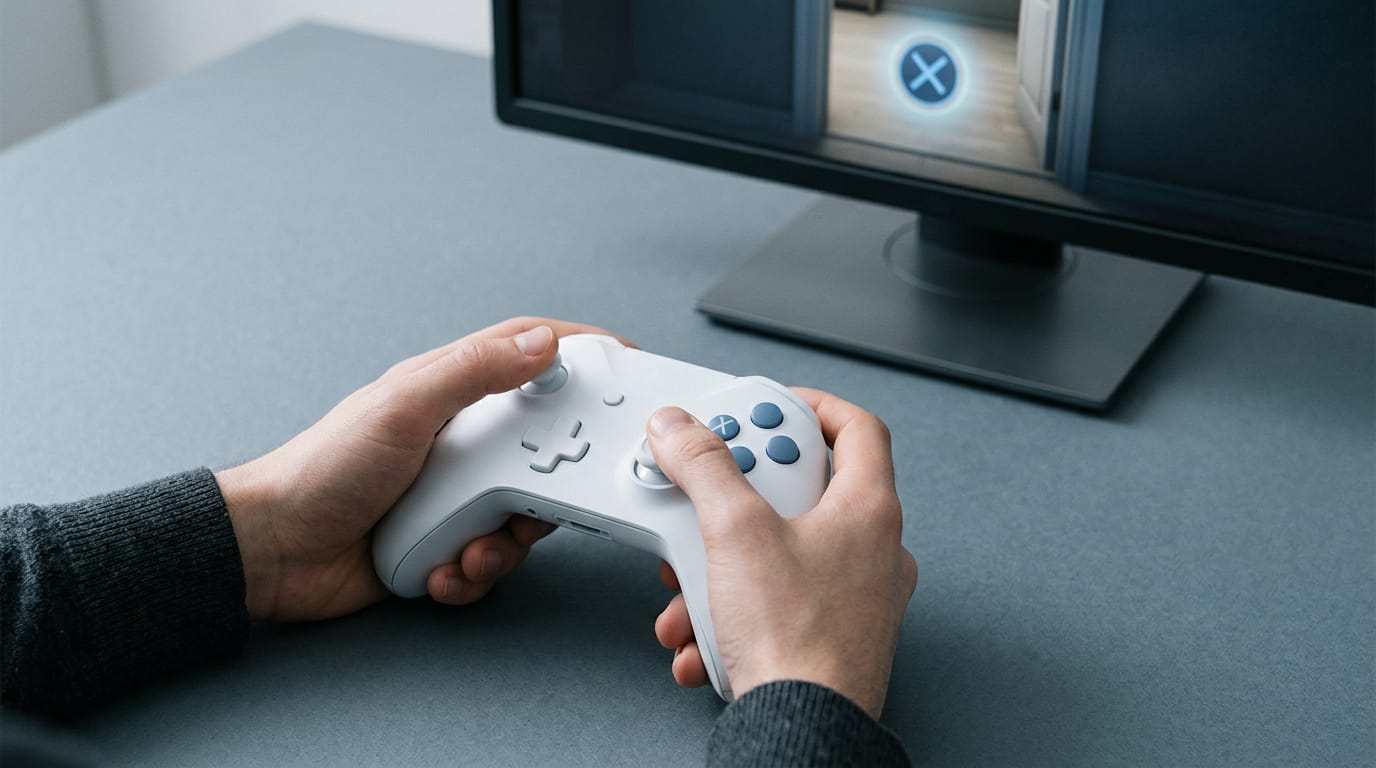
Button remapping moves actions onto buttons that suit your hands. Context-based button hints show the prompt for whatever you’re looking at or holding, so the screen tells you what each button does right now.
Controller-specific glyphs swap generic labels for the icons on your pad, and resource pack customization lets you restyle those prompts, since a resource pack changes how the game looks.
It’s less about memorizing a layout and more about seeing it on screen. No more guessing.
Vibration and controller-specific extras
Vibration events tie rumble to moments in the game, so you can feel a hit or a hard landing through your hands. DualSense haptics and triggers bring the PlayStation controller’s own feedback, felt through the pad itself, into play if you have a DualSense.
If you play on a Steam Deck, the controls carry over to its built-in buttons. And there’s no extra PlayStation software needed, so setup stays inside Minecraft.
Map Controllers to Minecraft Through Steam
Steam can sit between your controller and Minecraft, so you map your buttons once. Here’s how to set it up and where it can trip you up.
Add Minecraft as a non-Steam game
Add Minecraft to Steam as a non-Steam game, then launch it from Big Picture, the full-screen mode built for controllers. In the controller configuration menu, map each button to a keyboard or mouse action.
Steam translates your presses into keyboard and mouse input, so Minecraft never knows a controller is involved.
For example, a player who builds from the couch maps movement to the left stick and jumping to a face button, then never reaches for a keyboard.
Fixing conflicts with the Minecraft launcher
The Minecraft launcher can clash with Steam, so a few settings need changing. Turn on the keep launcher open setting, and remember it’s per profile: apply it to each controller profile you use.
If it still gets in the way, you can hide the launcher and reopen it later.
Allow the overlay in Big Picture settings. The same steps work on Linux too. It’s less about removing the launcher and more about keeping it out of the way. Set it up, then test it.
Where the Steam method falls short
The workaround has limits, so know them before you lose an evening to it. Here’s where it tends to fall short:
- Overlay trouble. Steam’s overlay may not work inside Minecraft.
- Big Picture for changes. Reconfiguring needs Big Picture, so plan to switch modes to edit.
- Controls can revert. Your mapping may reset after launch, so check it before you start a world.
Third-party Tools That Translate Controller Input
A third-party tool that translates controller input is what makes a PlayStation controller work on Minecraft PC. Here’s how that tool fits in and what it means for the controller you already own.
Can a PS5 controller work on Minecraft PC?
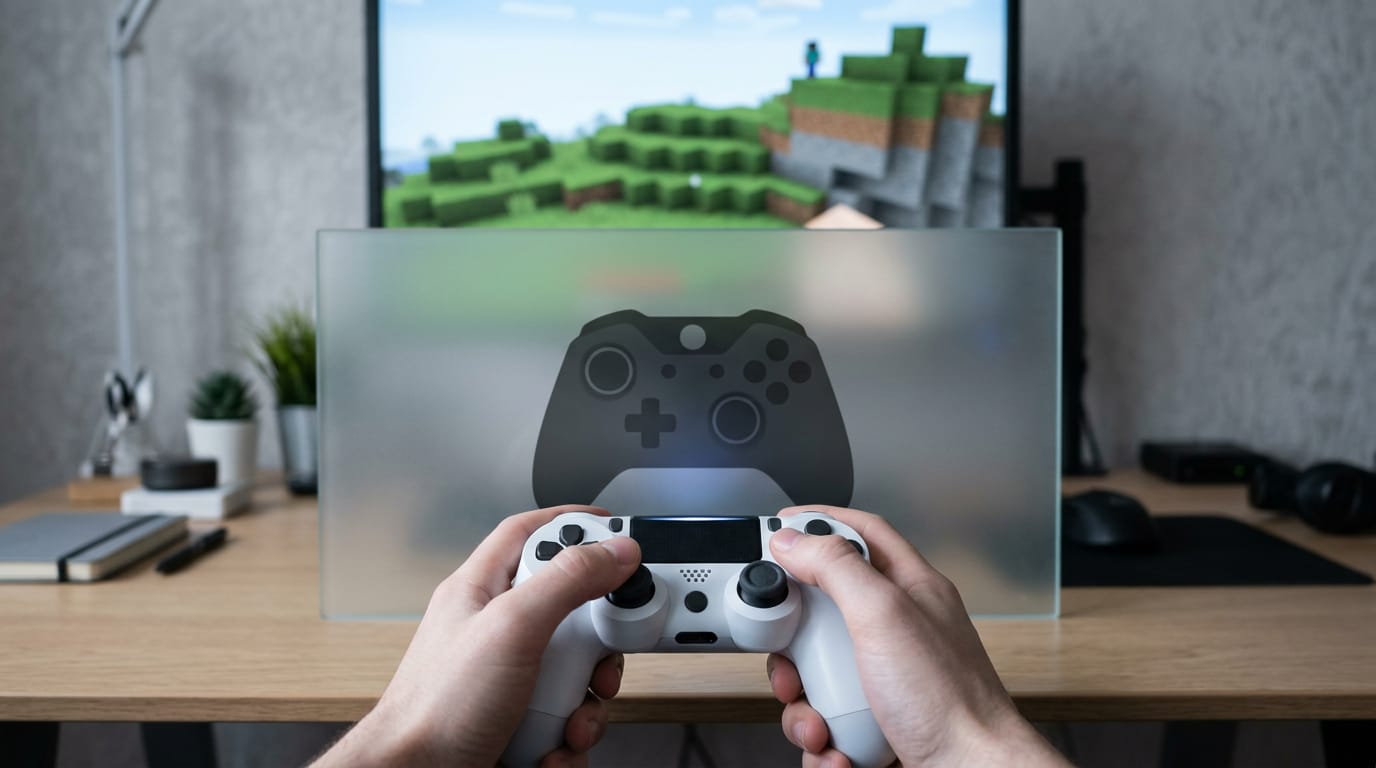
Yes, a PS5 controller can work on Minecraft PC, with a little help. The key idea is controller emulation: the tool makes your controller look like an Xbox controller to the computer.
It doesn’t change the hardware, it changes what the PC sees. Here’s what that gets you:
- Emulates an Xbox controller. Your PlayStation controller shows up on the PC as an Xbox controller.
- Works with DualShock 4 and DualSense. That covers the PS4 and PS5 controllers.
- Improves PC game compatibility. Because the signal reads as Xbox, PC games that expect one have an easier time with it.
Think of a player at a living room desk who already owns a DualSense and wants to try Minecraft without buying a new controller. They run the tool, pick up the controller they already have, and play. That’s the whole trick.
What about a PS4 controller? Yes, you can use one on your PC in Minecraft. The DualShock 4 works through the same route, so the same steps apply. If a PS4 controller is sitting in a drawer, it’s worth a try before you spend on something new.
Why Won’t My Controller Work on Minecraft PC?
Usually it’s the connection, the button mapping, or a program fighting over the controller. Work through those in order.
Fixing connection problems with drivers and Bluetooth
Update your controller drivers, then check your Bluetooth pairing, since a stale pairing is a common culprit. Keep wireless receivers away from your router and other gadgets to avoid interference.
Consider a player who reinstalls Minecraft for an evening, only to find a second mapping program was the culprit. Often the question is which program is running the controller, not whether it works. Close the extra one. Done.
Quick checklist before you give up:
- Power: Is the controller charged, or is the cable firmly plugged in?
- Software: Are drivers current, and is Java or Steam updated or reinstalled?
- Mapping: Is only one mapping program running?
Latency is the delay between pressing a button and seeing the result. Wired controllers usually have the least and they don’t need charging. Bluetooth frees your desk but can add delay when the airwaves are busy.
A parent setting up a shared PC for a kid will likely prefer wired, since it’s always ready.
Fixing buttons that do the wrong thing
If the buttons misfire, check button mapping in Minecraft’s own controls menu. A jump on the wrong button means mapping, not a broken controller.
Any other program that remaps controller inputs can override those settings. Use one mapper at a time, and close the rest before you launch the game.
Where to find help and guides
- Official documentation: Check Minecraft’s support pages for supported devices.
- Discord support servers: Community members can often help quickly, but don’t share your account login.
- Wiki guides: The community wiki is a good place to check edition-specific steps.
Console play and pro controller picks
Console players get controller support without extra setup, since consoles are built around controllers. On PC, pro-style models add extras worth comparing.
Hall effect sticks read position with magnets instead of physical contacts, which many players prefer for less drift. Rear buttons are back paddles you can map to jump or sneak without letting go of the sticks.
For a Nacon pro controller, check the product page for its extras, since features vary by model. Then compare Canadian-dollar prices across a few retailers before you buy.
Multiplayer and Server Things to Know
Sharing a PC or joining a server changes a few things, and controllers are no exception. Here’s what to watch for before you hand someone a pad.
Local play with splitscreen and instances
A splitscreen mod is still in development, so it’s not something you can count on yet. What you can use today is multi-instance support, which means running more than one copy of the game at once on the same PC.
Each copy needs two things to stay separate:
- Its own Microsoft account. Each instance signs into a different account, so each player keeps their own progress.
- Its own game directory. Separate folders keep each copy’s files from colliding.
Think of a parent with two kids sharing one gaming PC. Each child gets an instance with their own account and folder, so one can try a new setup while the other keeps playing as usual. Nothing gets mixed up.
Set each one up on its own from the start, rather than sharing one folder and hoping for the best.
Anti-cheat rules that limit analog movement
Servers may disable analog movement, the stick’s gradual, full-range control, as an anti-cheat rule. An override setting is available, but using it on a server that bans analog movement carries a real ban risk.
Picture a player who joins a friend’s server with a controller and wonders why the stick feels limited. Before they touch the override, they check the server’s rules. That one check keeps their account safe.
Check first, override second.
Controller support on Minecraft PC comes down to two things: knowing which edition you’re running and matching your setup to how you actually play.
Once that’s sorted, a gamepad can feel like a natural extension of the game you already love, whether you’re building on the couch or exploring a server with friends.
The right controller doesn’t have to cost a fortune. It just has to fit the way you play.
References
- Minecraft Controlify Mod: How to install and use — thespike.gg (2025)
Questions
How do I set up a controller for Minecraft?
For Minecraft Bedrock Edition, connect the controller with a USB cable or pair it over Bluetooth, then launch the game; it should detect the controller automatically. Java Edition does not support controllers natively, so install a compatible controller mod or use a mapping tool such as Steam before connecting and configuring the controller.
Why won't my controller work on Minecraft PC?
Minecraft PC may not recognize a controller because of a loose connection, outdated drivers, a stale Bluetooth pairing, incorrect button mapping, or competing remapping programs. Check the power and connection, update drivers, review the game’s control settings, and make sure only one mapping program is running. Bedrock supports controllers natively, while Java requires a mod or other tool.
Can you use a PS5 controller on a Minecraft PC?
Yes. A PS5 DualSense controller can work with Minecraft on PC through a controller-emulation tool that makes it appear to the computer as an Xbox controller. You can also use a compatible Java controller mod or Steam input mapping, depending on your Minecraft edition and setup.
Can I use a PS4 controller on my PC in Minecraft?
Yes. A PS4 DualShock 4 can work with Minecraft on PC through controller-emulation software that presents it as an Xbox controller. Java may require a controller mod or mapping tool, while Bedrock supports controllers natively.
Sources
- Minecraft Controlify Mod: How to install and use, thespike.gg,
Free · The Build Sheet
The Build Sheet: three gaming PCs priced at Canadian stores